100ms for Video Call
What is 100ms?
100ms is a video calling provider (SDK + dashboard) that lets you create rooms, define roles (for example host/guest), generate join tokens, and receive webhooks for events like session start/end and recordings.
In this project, 100ms is used as the video call provider so doctors and clients can join a video room securely.
Step 1: Register a 100ms account
- Open https://www.100ms.live/
- Register a new account and sign in.
Step 2: Create workspace (Video conferencing template)
After signing in, 100ms will ask you to create a workspace.
- Create a new workspace
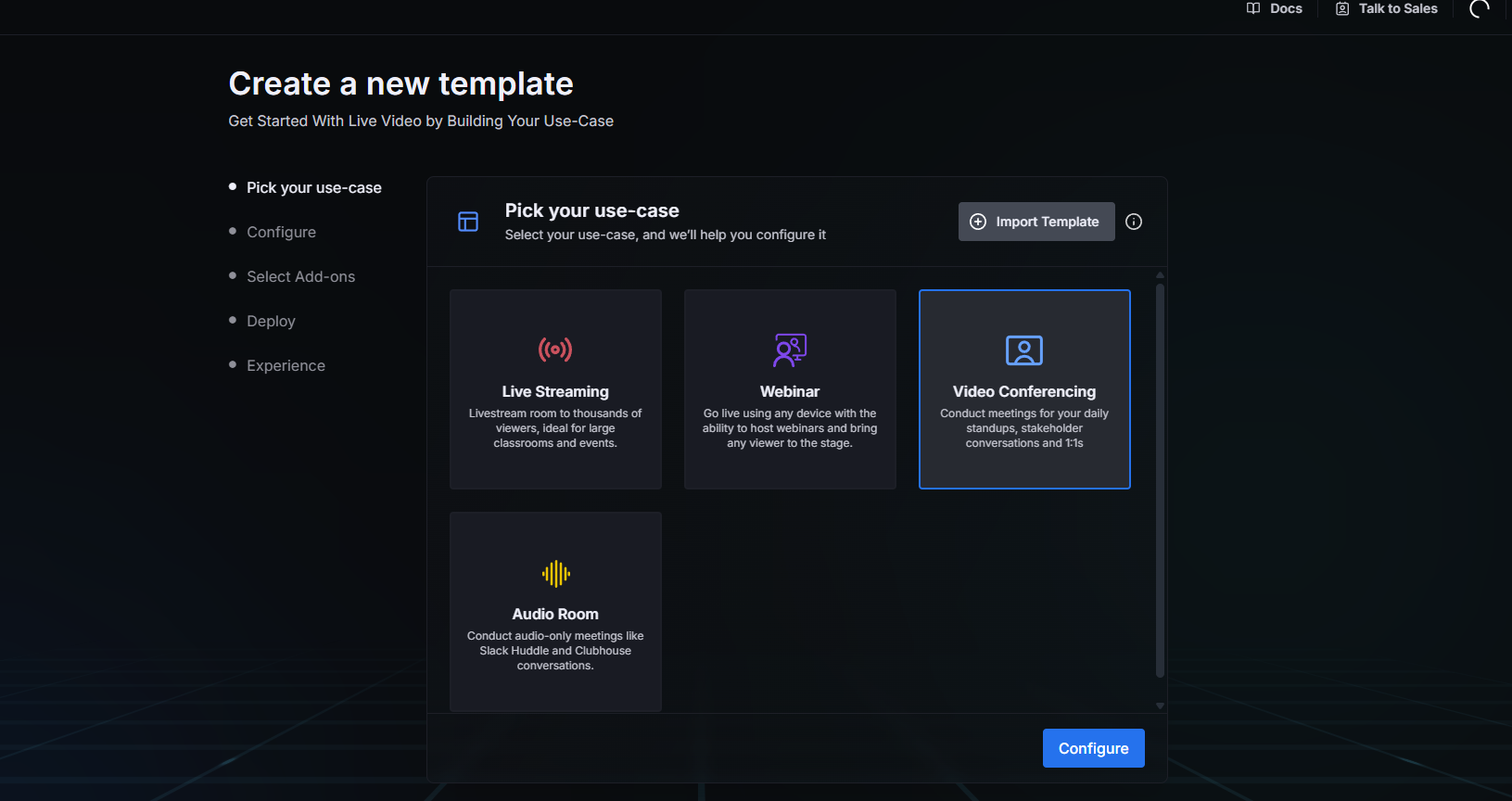
- Select the template
- Choose Video conferencing
- Click Configure
Step 3: Room template name and subdomain
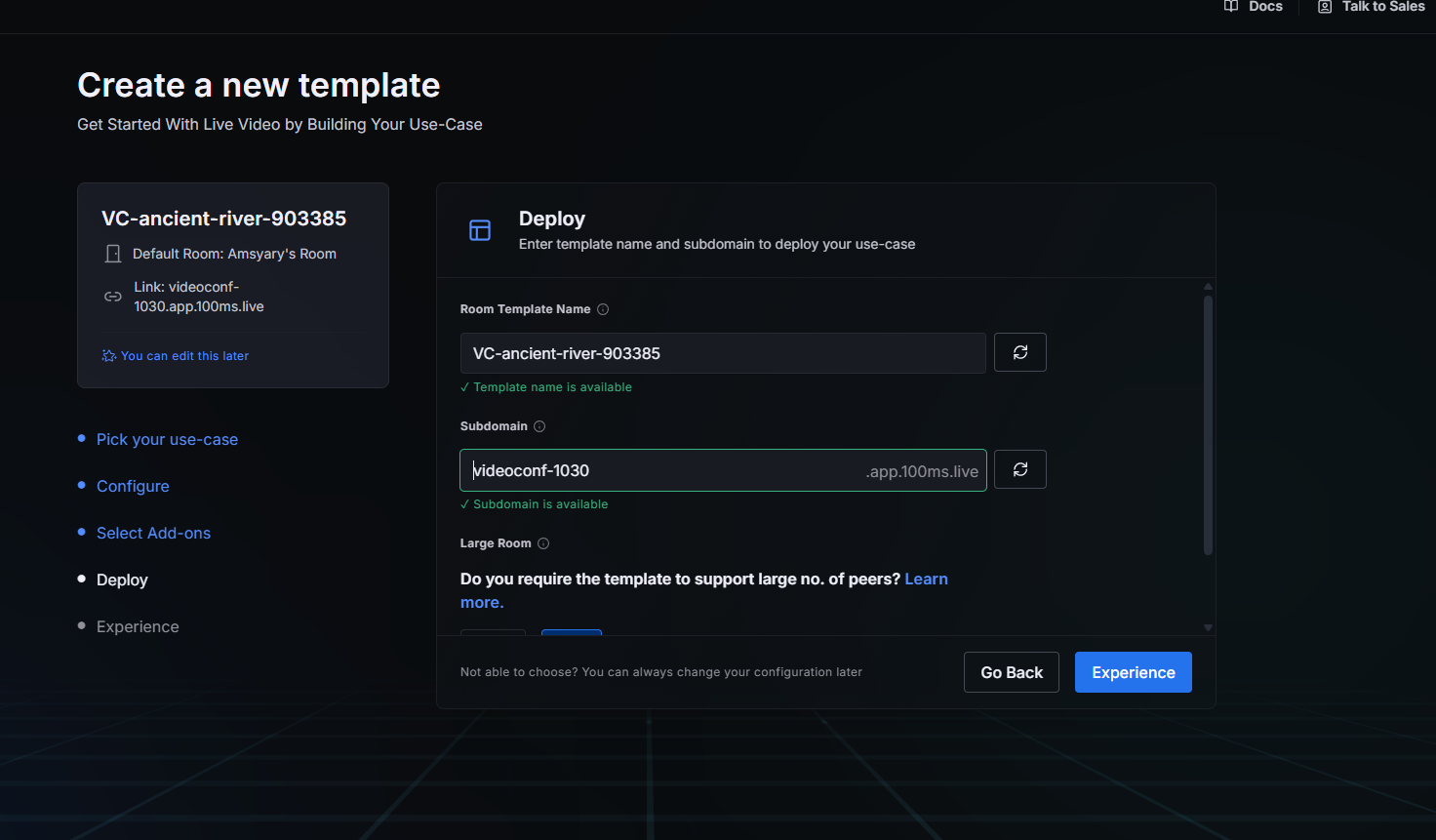
Next, you can configure the room template:
- Room template name: you can keep the default
- Subdomain: you can keep the default
Then click Experience.
Step 4: Copy Template ID to Cloud Functions env
- Go back to the 100ms dashboard
- Open the Templates section
- Copy the Template ID
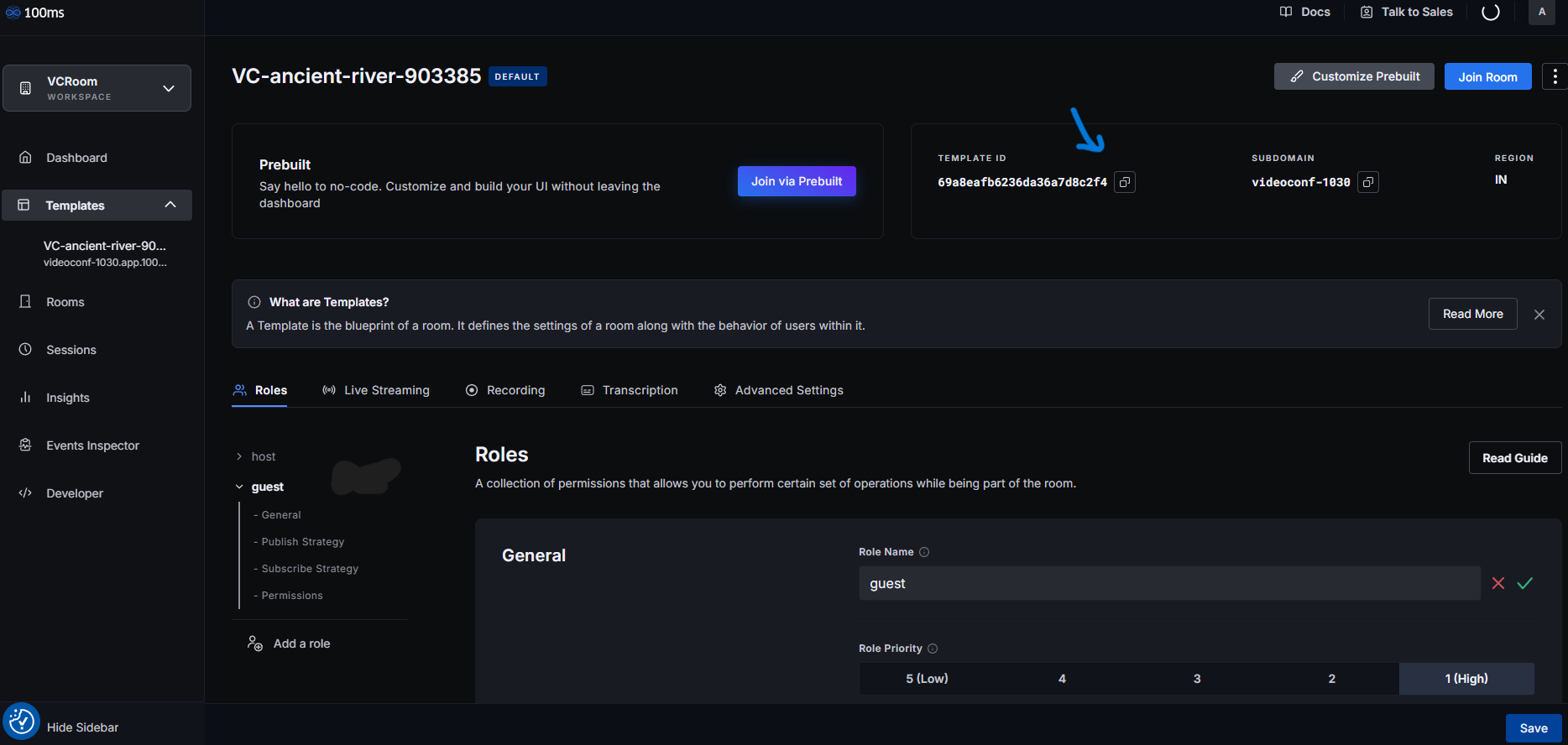 4. Paste it into your Cloud Functions project environment file (
.env), using the variable name that already exists in that project’s .env_example.
This documentation repo does not contain the Cloud Functions source code. Use the variable names from your Cloud Functions project’s .env_example to avoid mismatches.
Step 5: Ensure the guest role exists
Still in the Templates section:
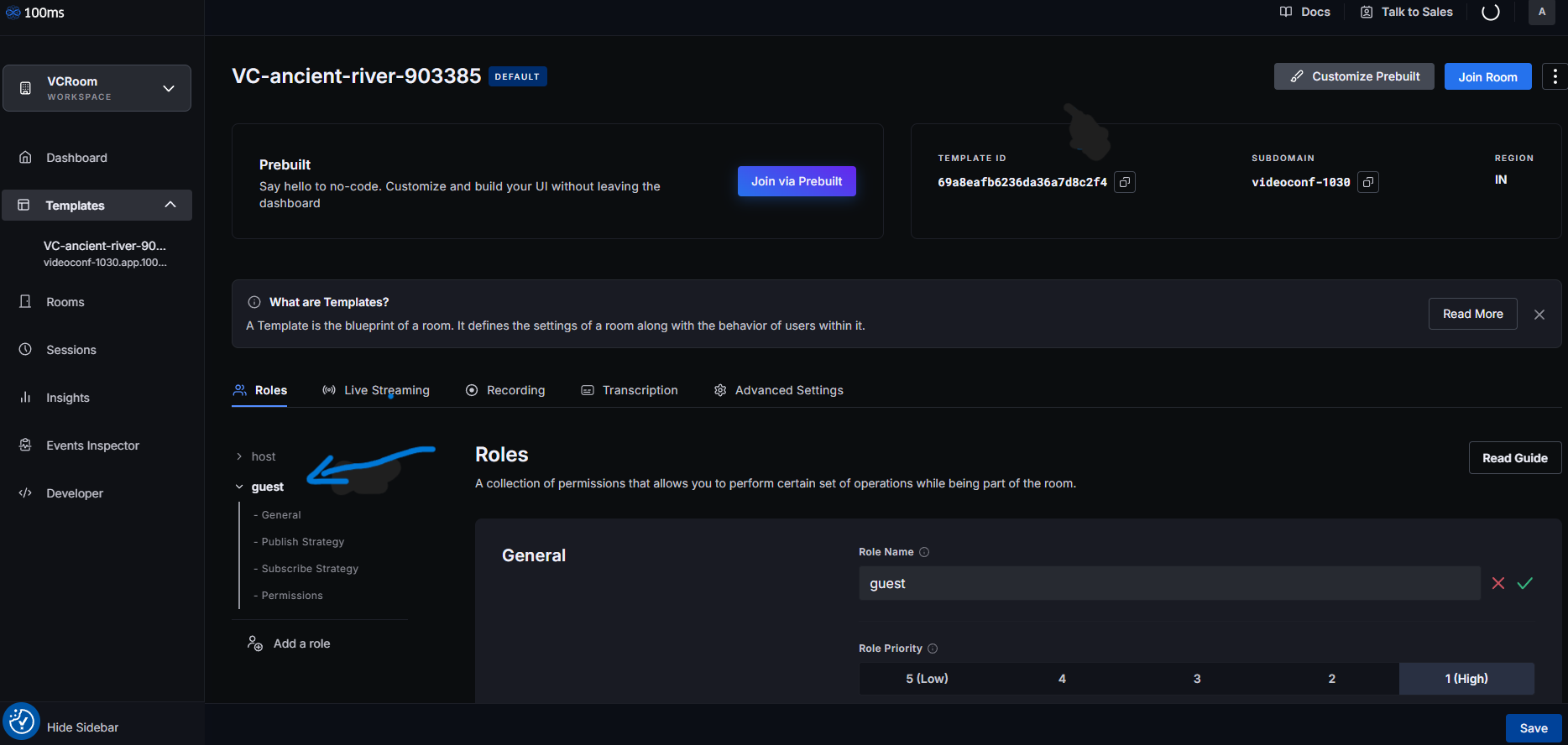
- Open the template you created
- Check roles
- Make sure there is a role named guest
- If it does not exist, create a new role called guest
Step 6: Copy App Access Key and App Secret to Cloud Functions env
- Go to the Developer section in the 100ms dashboard
- Copy:
- App Access Key
- App Secret
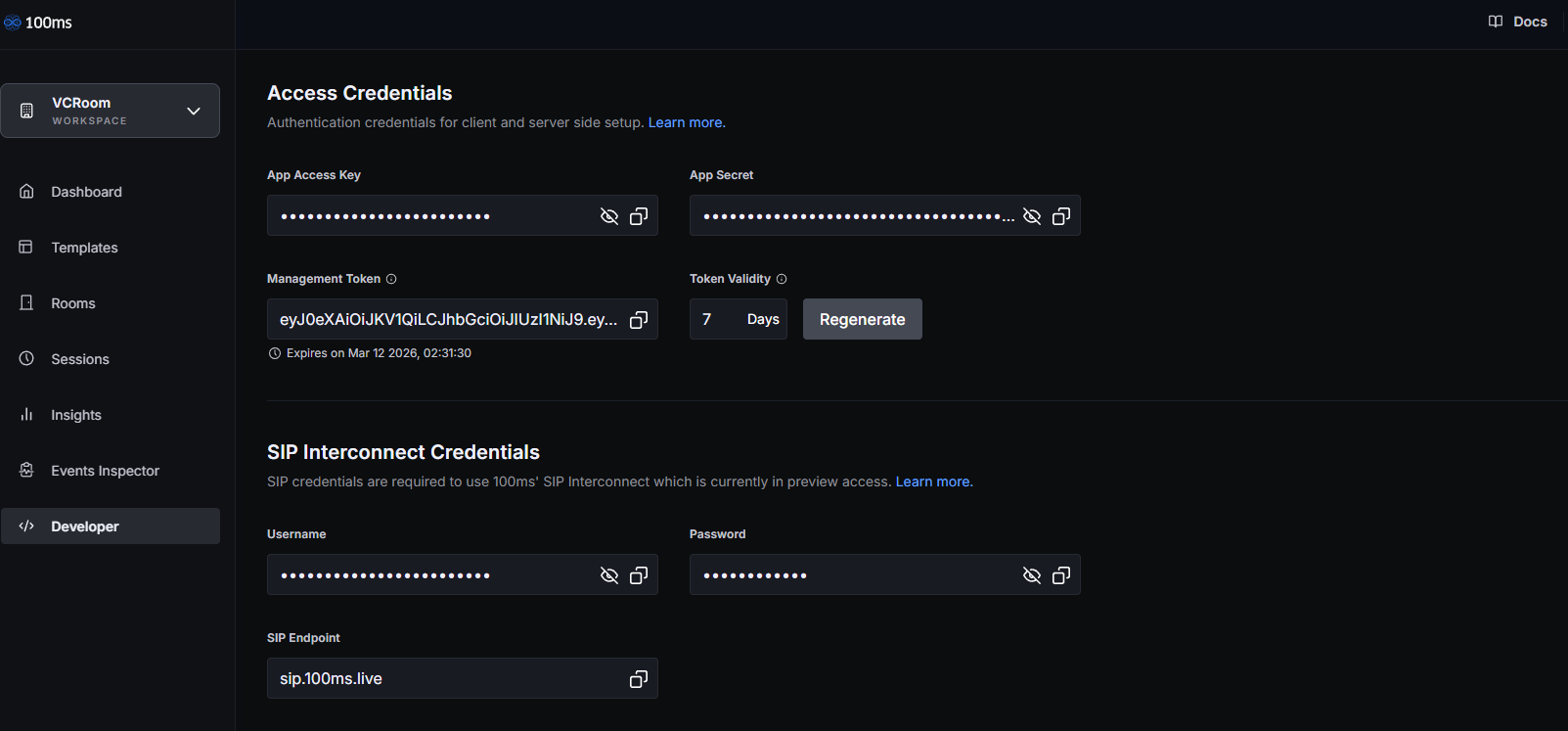
- Paste both into your Cloud Functions project
.envfile (again, use the variable names from the project’s.env_example).
Step 7: Setup webhook (required for tracking sessions/recordings)
This project uses a webhook so the backend can track video call sessions (and recordings, if enabled).
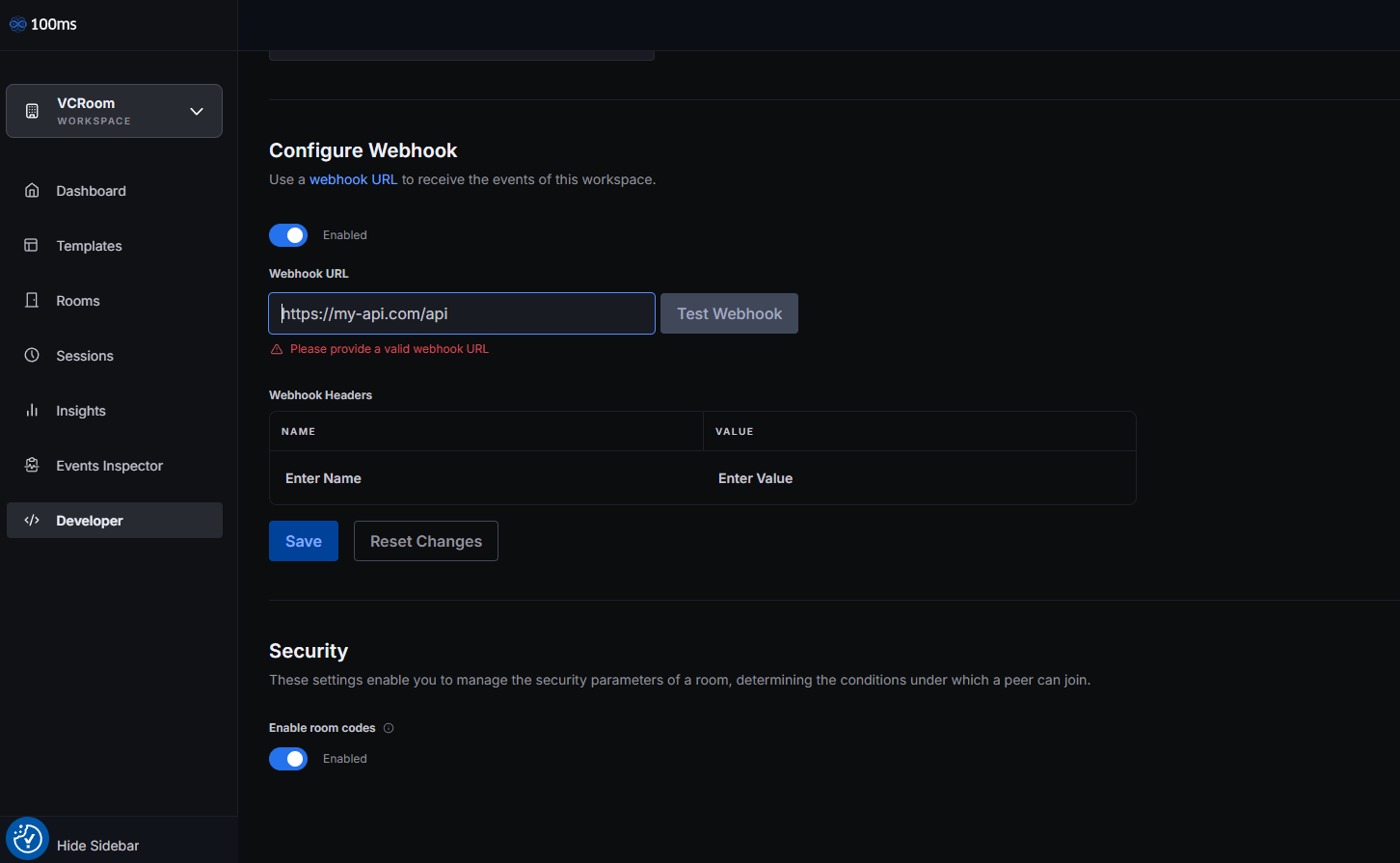
- In the 100ms dashboard, go to Developer
- Scroll down to the Webhooks section
- For the webhook URL, use your Firebase Cloud Functions endpoint:
- Open Firebase Console
- Go to Functions
- Find the function named hmssWebhook
- Copy its URL
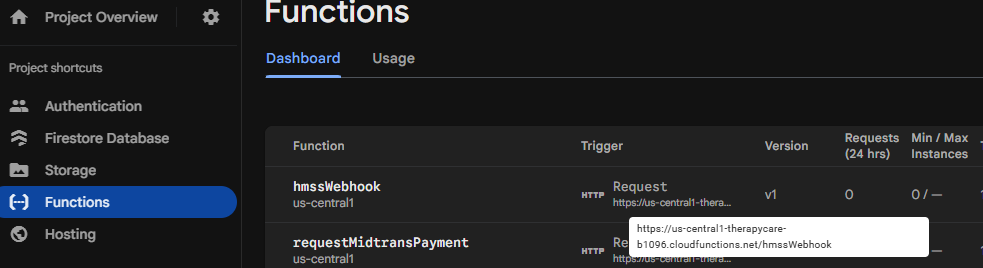
- Paste the URL into the 100ms webhook configuration
- Save
Done
After setting the Template ID, roles, app credentials, and webhook, the 100ms video call integration should be ready.